Showing posts with label Security. Show all posts

Thursday, June 29, 2017

Petya Ransomware – Microsoft Guidelines

On June 27, 2017 reports of a ransomware infection began spreading across Europe. We saw the first infections in Ukraine, where more than 12,500 machines encountered the threat. We then observed infections in another 64 countries, including Belgium, Brazil, Germany, Russia, and the United States. The new ransomware has worm capabilities, which allows it to move laterally across infected networks. Based on our investigation, this new ransomware shares similar codes and is a new variant of Ransom:Win32/Petya. This new strain of ransomware, however, is more sophisticated. To protect our customers, we released cloud-delivered protection updates and made updates to our signature definition packages shortly after. These updates were automatically delivered to all Microsoft free antimalware products, including Windows Defender Antivirus and Microsoft Security Essentials. You can download the latest version of these files manually at the Malware Protection Center. Windows Defender Advanced Threat Protection (ATP) automatically detects behaviors used by this new ransomware variant without any updates.

Delivery and installation

Initial infection appears to involve a software supply-chain threat involving the Ukrainian company M.E.Doc, which develops tax accounting software, MEDoc. Although this vector was speculated at length by news media and security researchers—including Ukraine’s own Cyber Police—there was only circumstantial evidence for this vector.  Microsoft now has evidence that a few active infections of the ransomware initially started from the legitimate MEDoc updater process. As we highlighted previously, software supply chain attacks are a recent dangerous trend with attackers which requires advanced defense.

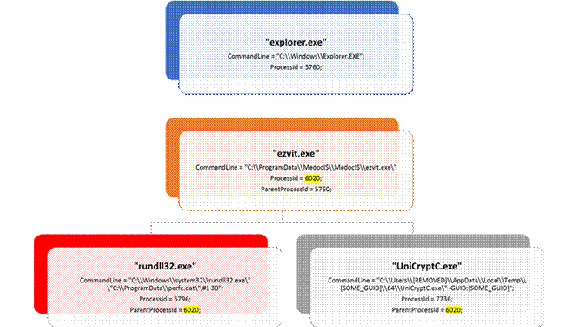
We observed telemetry showing the MEDoc software updater process (EzVit.exe) executing a malicious command-line matching this exact attack pattern on Tuesday, June 27 around 10:30 GMT.

The diagram of the execution chain leading to the ransomware installation is represented in the picture below and essentially confirms that EzVit.exe process from MEDoc, for unknown reasons, at some moment executed the following command-line:

C:\\Windows\\system32\\rundll32.exe\” \”C:\\ProgramData\\perfc.dat\”,#1 30
clip_image002

The same update vector was also mentioned by Ukraine Cyber Police in a public list of indicator of compromise (IOCs) , which includes the MeDoc updater.

A single ransomware, multiple lateral movement techniques

Given this new ransomware’s added lateral movement capabilities it only takes a single infected machine to affect a network. The ransomware spreading functionality is composed of multiple methods responsible for:

? stealing credentials or re-using existing active sessions

? using file-shares to transfer the malicious file across machines on the same network

? using existing legitimate functionalities to execute the payload or abusing SMB vulnerabilities for unpatched machines

In the next sections, we’ll dig into the details of each technique.

Lateral Movement using credential theft and impersonation

This ransomware drops a credential dumping tool (typically as a .tmp file in the %Temp% folder) that  shares code similarities with Mimikatz and comes in 32-bit and 64-bit flavors.  Because users frequently log in using accounts with local admin privileges and have active sessions opens across multiple machines, stolen credentials are likely to provide the same level of access the user has on other machines.  Once the ransomware has valid credentials, it scans the local network to establish valid connections on ports tcp/139 and tcp/445. A special behavior is reserved for Domain Controllers or servers: this ransomware attempts calls DhcpEnumSubnets() to enumerate DCP subnets all hosts on all DHCP subnets before scanning for tcp/139 and tcp/445 services. If it gets a response, the malware attempts to copy a binary on the remote machine using regular file-transfer functionalities with stolen credentials.

It then tries to execute remotely the malware using either PSEXEC or WMIC tools.

The ransomware attempts to drop the legitimate psexec.exe (typically renamed to dllhost.dat) from an embedded resource within the malware.  It then scans the local network for admin$ shares, copies itself across the network, and executes the newly copied malware binary remotely using psexec.

In addition to credential dumping, the malware also tries to steal credentials by using the CredEnumerateW function to get all the other user credentials potentially stored on the credential store. If a credential name starts with “TERMSRV/” and the type is set as 1 (generic) it uses that credential to propagate through the network.

clip_image003

Ransomware code responsible for accessing \\Admin$ shares on different machines

This ransomware also uses the Windows Management Instrumentation Command-line (WMIC) to find remote shares (using NetEnum/NetAdd) to spread to. It uses either a duplicate token of the current user (for existing connections), or a username/password combination (spreading through legit tools).

clip_image004

Screenshot showing launch of malware on a remote machine using WMIC

Lateral movement using EternalBlue and EternalRomance

The new ransomware can also spread using an exploit for previously patched SMB vulnerability CVE-2017-0144 (also known as EternalBlue), which was also exploited by WannaCrypt to spread to out-of-date machines. In addition, Petya also uses a second exploit for CVE-2017-0145 (also known as EternalRomance and still fixed by the same bulletin).

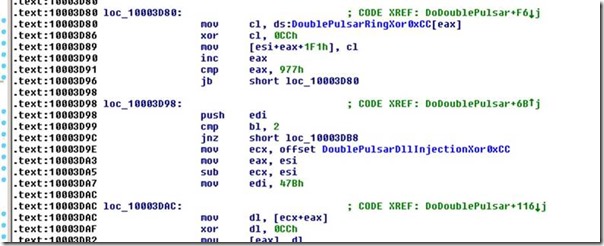
We’ve seen Petya attempt to use these exploits by generating SMBv1 packets (which are all XOR 0xCC encrypted) to trigger these vulnerabilities at the following address of the malware code:

clip_image005

clip_image006

These two vulnerabilities were leaked by a group called Shadow Brokers. However, it is important to note that both of these vulnerabilities have been fixed by Microsoft since March 14, 2017.

Machines that are patched against this exploit (with security update MS17-010) or have disabled SMBv1 are not affected by this particular spreading mechanism. Please refer to our previous blog for details on these exploits and how modern Windows 10 mitigations can help to contain similar threats.

Encryption

This ransomware’s encryption behavior depends on the malware process privilege level and the processes found to be running on the machine. It does this by employing a simple XOR-based hashing algorithm on the process names, and checks against the following hash values to use as a behavior exclusion:

clip_image008

? 0x2E214B44 – if a process with this hashed name is found running on the machine then the ransomware will not infect the MBR

clip_image010

? 0x6403527E or 0x651B3005 – if these hashes of process names are found, the ransomware will not carry out any of its network-related actions (such as attempting to exploit the SMBv1 vulnerability)

clip_image012

This ransomware then writes to the master boot record (MBR) and then sets up the system to reboot. It sets up schedule tasks to shut down the machine after at least 10 minutes past the current time. The exact time is random (GetTickCount()). For example:

schtasks /Create /SC once /TN “” /TR “<system folder>\shutdown.exe /r /f” /ST 14:23

Upon successfully modifying the MBR, it displays the following fake system message, noting that your drive contains error and shows the fake integrity checking:

clip_image013

It then displays this ransom note:

clip_image014

Only if the malware is running with highest privilege (i.e., with SeDebugPrivilege enabled), it tries to overwrite the MBR code.

This ransomware attempts to encrypt all files found on fixed drives with the following extensions in all folders, except for C:\Windows:

.3ds

.7z

.accdb

.ai

.asp

.aspx

.avhd

.back

.bak

.c

.cfg

.conf

.cpp

.cs

.ctl

.dbf

.disk

.djvu

.doc

.docx

.dwg

.eml

.fdb

.gz

.h

.hdd

.kdbx

.mail

.mdb

.msg

.nrg

.ora

.ost

.ova

.ovf

.pdf

.php

.pmf

.ppt

.pptx

.pst

.pvi

.py

.pyc

.rar

.rtf

.sln

.sql

.tar

.vbox

.vbs

.vcb

.vdi

.vfd

.vmc

.vmdk

.vmsd

.vmx

.vsdx

.vsv

.work

.xls

.xlsx

.xvd

.zip

It uses file mapping APIs instead of a usual ReadFile()/WriteFile() APIs, shown in the following code snapshot:

clip_image015

Unlike most other ransomware, this threat not append a new file name extension to encrypted files. Instead, it overwrites the said files.

The AES key generated for encryption is per-machine and it gets exported and encrypted using the embedded 800-bit RSA public key of the attacker.

clip_image016

Embedded RSA public key

clip_image017

Code exporting the per machine AES 128 bit key and encrypting it using embedded RSA public key during export

The unique key used for files encryption (AES) is added, in encrypted form, to the README.TXT file the threat writes under section “Your personal installation key:”.

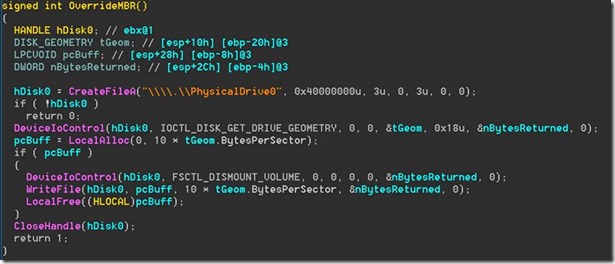
Beyond encrypting files, this ransomware also attempts to overwrite the MBR and the first sector of the VBR. If the malware is run with SeShutdownPrivilege or SeDebugPrivilege or SeTcbPrivilege privilege, it  overwrites the MBR of the victim’s machine. It directly accesses the drive0 \\\\.\\PhysicalDrive0 as described in the following code snapshots:

MBR overwrite pseudo code:
clip_image018

Overwriting the first sector of VBR:

clip_image019

After encryption, it drops a text file called README.TXT with the following text:

clip_image021

This ransomware also clears the System, Setup, Security, Application event logs and deletes NTFS journal info.

Detection and investigation with Windows Defender Advanced Threat Protection

Windows Defender Advanced Threat Protection (Windows Defender ATP) is a post-breach solution and offers by-design detections for this attack without need of any signature updates. WDATP sensors constantly monitor and collect telemetry from the endpoints and offers machine-learning detections for common lateral movement techniques and tools used by this ransomware, including for example the execution of PsExec.exe with different filename, and the creation of the ‘perfc.dat’ file in remote shares (UNC) paths.

Today, without the need of additional updates, an infected machine may look like this:

clip_image023

The second alert targets the distribution of the ransomware’s dll file over the network. Clicking into this event provides helpful information during investigation as it includes the User context which was used to move the file remotely.  This user has been compromised and could represent the user associated with patient-zero:

clip_image025

With Windows Defender ATP, enterprise customers are well-equipped to quickly identify Petya outbreaks, investigate the scope of the attack, and respond early to malware delivery campaigns.

Protection against this new ransomware attack

Keeping your Windows 10 up-to-date gives you the benefits of the latest features and proactive mitigations built into the latest versions of Windows.

As another layer of protection, Windows 10 S only allows apps that come from the Windows Store to run. Windows 10 S users are further protected from this threat.

We recommend customers that have not yet installed security update MS17-010 to do so as soon as possible. Until you can apply the patch, we also recommend two possible workarounds to reduce the attack surface:

? Disable SMBv1 with the steps documented at Microsoft Knowledge Base Article 2696547 and as recommended previously

? Consider adding a rule on your router or firewall to block incoming SMB traffic on port 445

As the threat targets ports 139 and 445, you could block any traffic on those ports to prevent propagation either into or out of machines in your network. You can also disable remote WMI and file sharing. These may have large impacts on the capability of your network, but may be suggested for a very short time period while you assess the impact and apply definition updates.

Windows Defender Antivirus detects this threat as Ransom:Win32/Petya as of the 1.247.197.0 update. Windows Defender Antivirus uses cloud-based protection, helping to protect you from the latest threats. For enterprises, use Device Guard to lock down devices and provide kernel-level virtualization-based security, allowing only trusted applications to run, effectively preventing malware from running. Monitor networks with Windows Defender Advanced Threat Protection, which alerts security operations teams about suspicious activities. Download this playbook to see how you can leverage Windows Defender ATP to detect, investigate, and mitigate ransomware in networks: Windows Defender Advanced Threat Protection – Ransomware response playbook.

Resources

Download English language security updates: Windows Server 2003 SP2 x64, Windows Server 2003 SP2 x86, Windows XP SP2 x64, Windows XP SP3 x86, Windows XP Embedded SP3 x86, Windows 8 x86, Windows 8 x64

Download localized language security updates: Windows Server 2003 SP2 x64, Windows Server 2003 SP2 x86, Windows XP SP2 x64, Windows XP SP3 x86, Windows XP Embedded SP3 x86, Windows 8 x86, Windows 8 x64

MS17-010 Security Update: https://technet.microsoft.com/en-us/library/security/ms17-010.aspx

General information on ransomware: https://www.microsoft.com/en-us/security/portal/mmpc/shared/ransomware.aspx

Next-generation ransomware protection with Windows 10 Creators Update: https://blogs.technet.microsoft.com/mmpc/2017/06/08/windows-10-creators-update-hardens-security-with-next-gen-defense/

Indicators of Compromise

Network defenders may search for the following indicators:

File Indicators

? 34f917aaba5684fbe56d3c57d48ef2a1aa7cf06d

? 9717cfdc2d023812dbc84a941674eb23a2a8ef06

? 38e2855e11e353cedf9a8a4f2f2747f1c5c07fcf

? 56c03d8e43f50568741704aee482704a4f5005ad

Command Lines

In environments where command-line logging is available, the following command lines may be searched:

? Scheduled Reboot Task:  Petya schedules a reboot for a random time between 10 and 60 minutes from the current time

o schtasks /Create /SC once /TN “” /TR “<system folder>\shutdown.exe /r /f” /ST <time>

o cmd.exe /c schtasks /RU “SYSTEM” /Create /SC once /TN “” /TR “C:\Windows\system32\shutdown.exe /r /f” /ST <time>

This may be surfaced by searching for EventId 106 (General Task Registration) which captures tasks registered with the Task Scheduler service.

? Lateral Movement (Remote WMI)

o “process call create \”C:\\Windows\\System32\\rundll32.exe \\\”C:\\Windows\\perfc.dat\\\” #1”

Network indicators

In environments where NetFlow data are available, this ransomware’s subnet-scanning behavior may be observed by looking for the following:

? Workstations scanning ports tcp/139 and tcp/445 on their own local (/24) network scope

? Servers (in particular, domain controllers) scanning ports tcp/139 and tcp/445 across multiple /24 scopes

Friday, April 14, 2017

Remove X-powered by ASP.NET version and IIS version from HTTP response header of IIS webservers

Russian-hackersHackers are using footprinting techniques to collect as much information about a target network. By simply telnetting a webserver, sensitive information such as servername, server type, operating systems and application running can be disclosed. For example, tools such as httprecon, ID serve and NMAP can perform such tasks.

After obtaining information about version of applications, the hacker will know whether the applications have the latest patches or not. If the latter is true, all the vulnerabilities that are not yet patched could be potentially be exploited by the hacker. Therefore it is important not to reveal such information on webservers.

The following details how to remove X-powered by ASP.NET version and IIS version from HTTP response header of IIS webservers.

Generally, when a client browser requests a Web page, IIS returns a response with a Hypertext Transfer Protocol (HTTP) header. HTTP response headers are name and value pairs that contain information about the requested page. These include the HTTP version, date, and content type.

You can create or modify HTTP headers to pass special information in responses to clients. For example, You could create a custom header named “authors” that might contain the names of content authors. Or you might create a Content-Language header to describe the natural languages used in the body of your Web page, and provide several language-country/region values such as en-US (United States English), en-CA (Canadian English), and en-GB (British English).

If you create a custom HTTP response header at the Web server level, all Web sites, Web applications, virtual directories, and files inherit the header unless you override the header at a child level. Likewise, Web applications and virtual directories inherit headers from the Web site level, and files inherit headers from the Web application or virtual directory level. You can remove an inherited header so that it is not passed in a response, and restore the header later if it is required.

Note: To view HTTP response headers, You need to install the browser add -ons. Browser add-ons can be downloaded from the internet.

Steps to remove server name from HTTP Header:

Download and install the latest version of urlsacn tool (version 3.1) from the following link

32-Bit (x86): http://www.microsoft.com/downloads/details.aspx?FamilyID=ee41818f-3363-4e24-9940-321603531989

64-Bit (x64): http://www.microsoft.com/downloads/details.aspx?FamilyID=361e5598-c1bd-46b8-b3e7-3980e8bdf0de

1.Double-click the MSI file to begin the installation process.

2.Review the agreement in the UrlScan Installer Package End User Agreement and then click Yes to accept the agreement and continue. If you click No, the installer will close.

3.When the installer completes, a dialog box stating that UrlScan has been successfully installed will be displayed.

4.Click Finish to close the installer.

Verify whether the installer is configured correctly:

1.Installs the UrlScan.dll and UrlScan.ini files in the %windir%\system32\inetsrv\UrlScan directory. If UrlScan is already installed on the computer, the UrlScan.ini file is updated with any new settings that are not present in the current configuration file.

2.Adds UrlScan as a global filter to IIS.

3.Creates a %windir%\system32\inetsrv\UrlScan\Logs directory.

4.We can configure UrlScan's operation by setting options in the UrlScan.ini file. This file should reside in the same directory as UrlScan.dll, and it contains the sections and options that are listed below.

Note: UrlScan 3.0 added change notifications for the UrlScan.ini file, so it is no longer necessary to restart IIS after updating your UrlScan.ini file.

The [Options] section of a UrlScan.ini file contains a list of name/value pairs that define the general behavior for UrlScan. A few of the settings enable or disable other sections in the UrlScan.ini file.

Set Remote server header Allowed values are 0 or 1. The default value for RemoveServerHeader is 0.

If set to 1, UrlScan will remove the server header on all responses, and the value of AlternateServerName will be ignored.

If set to 0, IIS will return the default server header on all responses.

Note: This feature is only available if UrlScan is installed on IIS 4.0 or later.

Remove X-powered header from HTTP header:

IIS 7:

1.From the Internet information console, Click on server name in the left pane.

clip_image001

2.Click on HTTP response header.

clip_image002

3.Now Click on X-Powered  Asp.net version HTTP header and click remove in the top right panel.

clip_image003

IIS 6:

1.Right click on web site, and click properties.

2.Click on HTTP header.

3.Now under custom HTTP header, click on X-powered ASP.NET version.

4.Click Remove on the right pane.

Thursday, April 13, 2017

Microsoft Enterprise Threat Detection (ETD)

2870448202_d8036d9aa8_zETD-Hosted is a managed security service used to detect security related incidents and vulnerabilities within your environment that other sensors may have missed, providing unique insight into their global impact. There’s a range of 25,000 till 250,000 endpoints/hosts which can monitored (include physical and virtual laptops, desktops, and servers, etc.). The service leverages a number of data feeds emanating from or instrumented within your environment and a suite of detection tools run by Microsoft to detect security incidents.Using a combination of machine analytics, proprietary telemetry sources, and dedicated human analysis, the service is uniquely positioned to continually monitor for advanced attacks in the rapidly-evolving modern threat environment. Analysts leverage unique Microsoft technologies and assets to provide you with unparalleled insight into your environment and enhanced detection capabilities. Working with you as a technical advisor and extension of your security team, Microsoft use world-class technologies, Windows internals, and global telemetry sources to establish the use of the infrastructure as a sensor, determining if your network is compromised, under attack, vulnerable, and/or non-compliant.

Microsoft will monitor data and provide alerts based on Microsoft’s Cyber Threat Intelligence (CTI) platform, which is a global telemetry system with advanced data mining capabilities. This platform leverages the vast network of global sensors owned and operated by Microsoft as part of multiple antimalware programs at Microsoft that enable Microsoft to become aware of potential threats.

How the Offering Works

Microsoft will work with you to configure your clients to send native Windows telemetry events to one or more ETD collectors deployed on your network. This can all be performed through Active Directory and there is no software to deploy to clients. These collectors will forward events to our cloud-based ETD Analysis Center where our analysts will use enhanced heuristics to analyze the data and work with you to provide actionable information. The analysis is focused on detecting attacks, vulnerable systems, persistent malware, and corporate policy violations.

The analysts also query Microsoft’s vast global telemetry and threat intelligence sources to monitor and analyze your environment, providing you with a deeper understanding of activity emanating from your environment and threats facing your environment. Data from the Microsoft Active Protection System (MAPS), our global antimalware telemetry system, is combined with indicators from Microsoft’s Digital Crimes Unit (DCU) and other internal threat intelligence sources, to provide you with actionable intelligence.

The service also leverages output from your existing Advanced Threat Analytics (ATA) and Defender Advanced Threat Protection (D-ATP) implementations, if available. Your ATA center is configured to send data to ETD analysts for additional investigation and cross-correlation with ETD data feeds. By providing ETD analysts access to your D-ATP tenant, detection capabilities for Windows 10 endpoints is increased as well.

The Offering consists of weekly, monthly and/or quarterly summative reports on findings and threat profiles of your organization, as well as “out of band” alerting for critical threats such as an on-going attack or serious vulnerability.

Subscription Components and Pricing

• ETD Hosted is provided as an annual fixed-fee subscription service. Included in this subscription are:

• Architectural guidance on deploying ETD Collectors and enabling telemetry collection through Active Directory

• License to install as many ETD Collectors as required for the duration of the subscription

• Detailed weekly, monthly or quarterly summative reporting on findings and threat profiles of your organization

• Out-of-band reporting on immediate threats and active attacks once detected

ETD Hosted subscription pricing does not include the cost of the collector hardware or required collector Windows operating system licenses. It does not include the licensing, deployment, and configuration of Advanced Threat Analytics (ATA) and/or Windows Defender ATP (D-ATP). Pricing varies based on the number of Windows endpoints within the organization and the frequency of summative reporting.

Potential Benefits:

  • Enhanced detection and situational awareness, leveraging best in class detection technologies
  • Analysis of threats using Microsoft global telemetry and threat intelligence sources with a focus on your environment
  • Improved detection of
    • Zero-day vulnerabilities
    • Malware undetected by antivirus
    • Systems missing security patches
    • Suspicious web traffic

Sample Alert

image 

image

Source: Microsoft

Tuesday, April 4, 2017

Prevent Spoofing Email Attack – Steps to Implement SPF, DKIM and DMARC on O365

1 – Implement SPF
security-265130_960_720
An SPF TXT record is a DNS record that helps prevent spoofing and phishing by verifying the domain name from which email messages are sent. SPF validates the origin of email messages by verifying the IP address of the sender against the alleged owner of the sending domain
Requirements for your SPF TXT record and Office 365
If you set up mail when you set up Office 365, you already created an SPF TXT record that identifies the Microsoft messaging servers as a legitimate source of mail for your domain. This record probably looks like this:
v=spf1 include:spf.protection.outlook.com –all
If you have a hybrid deployment (that is, you have some mailboxes on-premises and some hosted in Office 365), or if you’re an Exchange Online Protection (EOP) standalone customer (that is, your organization uses EOP to protect your on-premises mailboxes), you should add the outbound IP address for each of your on-premises edge mail servers to the SPF TXT record in DNS.
A typical SPF TXT record for Office 365 has the following syntax:
v=spf1 [<ip4>|<ip6>:<IP address>] [include:<domain name>] <enforcement rule>
For example, let's say that your domain contoso.com uses Office 365. You add an SPF TXT record that lists the Office 365 messaging servers as legitimate mail servers for your domain. When the receiving messaging server gets a message from joe@contoso.com, the server looks up the SPF TXT record for contoso.com and finds out whether the message is valid. If the receiving server finds out that the message comes from a server other than the Office 365 messaging servers listed in the SPF record, the receiving mail server can choose to reject the message as spam.
Also, if your domain does not have an SPF TXT record, some receiving servers may reject the message outright. This is because the receiving server cannot validate that the messages come from an authorized messaging server.
Example: SPF TXT record for multiple outbound on-premises mail servers and Office 365
In case you are only using Office 365 for outbound emails, you should only have the recommended TXT record:
v=spf1 include:spf.protection.outlook.com –all (the SPF defined for your organization is: v=spf1 include:spf.protection.outlook.com~all)
If you have multiple outbound mail servers, include the IP address for each mail server in the TXT record and separate each IP address with a space followed by an “ip4:” statement. For example:
v=spf1 ip4:192.168.0.1 ip4:192.168.0.2 ip4:192.168.0.3 include:spf.protection.outlook.com ~all
If you know all of the authorized IP addresses, they should be added using the –all (Fail) qualifier. If you’re not sure that you have the complete list of IP addresses then you should use the ~all (SoftFail) qualifier.
In case you are sending messages smarthosted through Office 365 or even if you have a Hybrid environment and you are sending emails to a different Office 365 organization, you will have to add the on-premise IP address in your SPF record AND spf.protection.outlook.com.
https://blogs.technet.microsoft.com/eopinsights/2015/08/14/o365-and-spf/
Once you have formed your SPF TXT record, you need to update the record in DNS.
If an SPF TXT record exists, instead of adding a new record, you need to update the existing record.
If you already have an SPF record, you should append the new Office 365 values to it, rather than create a new one. You can verify/test the syntax of the SPF with 3 tools : https://support.office.microsoft.com/en-us/article/Tools-you-can-use-to-validate-SPF-records-for-your-domain-92a43f6a-4651-455a-a1cc-300684bedcfa?ui=en-US&rs=en-US&ad=US .
SPF is designed to help prevent spoofing, but there are spoofing techniques that SPF cannot protect against. In order to protect against these, once you have set up SPF, you should also configure DKIM and DMARC for Office 365. To get started, see Use DKIM to validate outbound email sent from your domain in Office 365.
2 - Implement DKIM
For more information, please see the link :
Here’s how to enable DKIM signing for your domain if it is hosted in Office 365 (Exchange Online Protection).
The <domainGUID> is the same as the <domainGUID> in the customized MX record for yourdomain that appears before mail.protection.outlook.com. For example, for a domain contoso.com:  
contoso.com.    3600  IN  MX   5 contoso-com.mail.protection.outlook.com.
The <initialDomain> is the same one that you signed up with for Office 365. For example, contoso.com may have signed up with contoso.onmicrosoft.com. Therefore, the two CNAMEs that contoso.com would publish are the following:
Host name:                  selector1._domainkey
Points to address or value: selector1-contoso-com._domainkey.contoso.onmicrosoft.com
TTL:                        3600 
Host name:                  selector2._domainkey
Points to address or value: selector2-contoso-com._domainkey.contoso.onmicrosoft.com
TTL:                        3600 
In the above, the host name does not contain the full FQDN of the domain you are provisioning. You could explicitly include the full thing, that is, instead of Host name selector1._domainkey, you could put selector1._domainkey.<domain>.
Note : For each other domain you have provisioned with Exchange Online, you will need to enable DKIM signing for it. 
For example, if your initial domain is contoso.onmicrosoft.com and you have provisioned contoso.com and fabrikam.com, you will need to provision 4 CNAMEs (two for each domain). The two CNAMEs are so that we can perform automatic DKIM key rotation for you. You need to do this for each domain that you use to send email. DKIM signing does not inherit DKIM settings for other domains that you have provisioned for your organization. For a company trying to DKIM-sign contoso.com and fabrikam.com, you’d have four additional DNS records that look like this: 
selector1._domainkey.contoso.com IN CNAME selector1-contoso-com._domainkey.contoso.onmicrosoft.com
selector2._domainkey.contoso.com IN CNAME selector2-contoso-com._domainkey.contoso.onmicrosoft.com
selector1._domainkey.fabrikam.com IN CNAME selector1-fabrikam-com._domainkey.contoso.onmicrosoft.com
selector2._domainkey.fabrikam.com IN CNAME selector2-fabrikam-com._domainkey.contoso.onmicrosoft.com
Second, you need to enable DKIM-signing for the domain within the service. You can do this in the EAC by going to protection > dkim and clicking Enable for each domain you own.
Alternatively, if you use Powershell:
New-DkimSigningConfig –DomainName <domain> –Enabled $true
3 – Implement DMARC to Prevent Spoofing
Once you have SPF and DKIM properly configured, you may choose to start using DMARC. Configuration of DMARC involves the creation of a DNS TXT record to advise recipients of what to do with DMARC failures and where to send the DMARC reports.
You’ll likely want to start with an action of “none” meaning that you just want to monitor emails not but take any action. Even if you can’t get to the point where you configure an action of “quarantine” or “reject”, you can still use DMARC to help mitigate phishing attempts.
After determining the action type, you will probably want to use a third-party service to help analyze the DMARC reports. Your published DMARC record will tell recipients that support DMARC to email reports to the address specified in the DNS record. These reports will arrive as a compressed attachment containing an XML file. There are a number of services that can assist with analyzing DMARC reports, some that are free, some that are paid and many that have 30-day trials. For my low-volume testing, I used “dmarcian” but there are a number of others listed at “dmarc.org“. These services will usually provide you two email addresses to publish: one for the aggregate reports and one for failure reports.
Now it’s time to publish your DMARC record. This record is a TXT record but instead of being at the root like your SPF, the record will have a host name of “_dmarc”. Some DNS providers do not support hostnames that begin with an underscore in which case you may need to switch DNS providers if you want to configure DMARC.
A typical DMARC record might look this this:
Host: _dmarc
TXT Value: "v=DMARC1; p=none; pct=100; rua=mailto:dmarc_aggr@dmarcservice.com; ruf=mailto:dmarc_fail@dmarcservice.com;"
- You should replace mailto:dmarc_aggr@dmarcservice.com/ mailto:dmarc_fail@dmarcservice.com with your email address, or you can create an address created especially for reports . 
Again, you should use one of the validation sites like “MxToolbox” to check your published DMARC record.
EOP more-or-less follows the DMARC specification for outbound messages. If a message is outbound from EOP and fails DMARC, then if the action is p=quarantine it will be routed through the High Risk outbound IP pool. However, if the message fails DMARC and the action is p=reject, the message will be rejected. There is no override for outbound email.
If you publish a DMARC reject policy (not p=quarantine, and not p=none), no other customer in Office 365 can spoof your domain because they will not be able to pass SPF or DKIM for your domain when relaying a message outbound through the service.
However, if you do publish a DMARC reject policy but don’t have all of your email authenticated, some of it may be marked as spam for inbound email (as described above), or it will be rejected if you do not publish SPF and try to relay it outbound through the service.
Many companies publish p=none because they are unsure about how much email they may lose by publishing a more restrictive DMARC policy. Microsoft, for example, is not yet in a position to publish p=reject because email sent to other third parties like Gmail, Yahoo, AOL, and so forth may discard important email if it does. Your company may be in the same position.
If you set up DMARC records, you can create an ETR that marks messages as spam for spoofed messages of your company that fail DMARC.
This means that all spoofed email of your domain into Office 365 will be marked as spam, but anywhere else – at Gmail, Yahoo, AOL – will not be marked as spam (at least not due to DMARC). Some legitimate email may be marked as spam, but to get around this either ensure that the email is authenticated by updating SPF records or signing it with DKIM; or, add a safe sender or ETR allow rule for the sender
You should still properly authenticate your email because it reduces false positives and it shrinks the list of exceptions. If you publish p=reject you will no longer need this rule.
clip_image001[6]

Wednesday, March 22, 2017

Ransomware General Guidelines by Microsoft

The goal of this document is to share general actions to put in place against ransomwares from a reactive and preventive perspective. If those actions could avoid certain infections, this document isn’t a full guarantee against all type of ransomware infections. If even after applying those recommendations one of your machine is infected, Microsoft can’t be taken as responsible for it. In addition, this document contains references to third party blogs and tools. Thus it’s your responsibility to use it or not and Microsoft can’t be taken as responsible if any third party tools are breaking anything on your machine or aren’t working as expected.

What to do in case of attack? The first actions:

1. Supply a sample of the ransomware

If the ransomware managed to pass through the anti-malware installed on your machine(s), there’s a high potential it’s not able to detect it. In order to solve this problem, it’s important to supply a sample of the malware to the anti-malware editor to let him check if it’s well detected or not. If it’s not, a definition update will be asked as quickly as possible. Regarding SCEP/Windows Defender, a ticket should be opened with Microsoft Support or the sample could be directly submitted through the public portal:

https://www.microsoft.com/security/portal/submission/submit.aspx

Don’t submit samples anonymously, please log in with you Microsoft account else the request won’t be prioritized in the queue. This Technet article explains how to submit a sample:

https://technet.microsoft.com/en-us/library/dn762129(v=exchg.150).aspx.

The file which has initiated the ransomware infection should be collected and sent by e-mail to your support contact in a password protected compressed archive using the password "infected" (without quotes and using lowercase). If you have the original e-mail containing the ransomware, please, include it in the compressed archived. It will allow Microsoft Support to check if the ransomware is well detected. If it’s not, a sample will be supplied to the laboratory (MMPC) in order to update definitions and allow the detection of the ransomware.

There’s a double interest doing this action: First of all, the anti-malware will be able to delete the ransomware from your organization once the definitions will be updated. Then, the new definition will be shared with all users of the anti-malware and will avoid others to be infected. It could also avoid other organizations you own to be infected if they’re not located at the same place.

The easiest way to collect a sample is generally to check in the Startup folder

(C:\users\XXXX\appdata\roaming\microsoft\windows\start menu\programs\startup) if a file named XXX.tmp or XXX.exe you don’t know has been created. The ransomware looks to stay active and will generally put itself in the Startup folder to start when the machine starts. Other common locations:

 C:\users\XXXX\appdata\
 C:\users\XXXX\appdata\Local
 C:\users\XXXX\appdata\Local\Temp
 C:\users\XXXX\appdata\Roaming
 HKCU\Software\Microsoft\Windows\CurrentVersion\Run
 HKLM\SOFTWARE\Microsoft\Windows\CurrentVersion\Run

Another method using Process Explorer and the Virus Total integration could be used, however the infected machine has to be connected to Internet: http://www.sevenforums.com/tutorials/345808-process-explorer-virustotal-check-all-processes-50-avs.html

If you can’t identify the infected machine, have a look to the entry N° 5 in this section. In addition, if you can’t identify the malware, the Microsoft Support could send you a tool (WOLF) to collect data on your machine and will help to try to identify the ransomware.

2. Enable the SCEP behavior monitoring and MAPS

Ransomwares continuously modify their shape to avoid being detected by anti-malwares and this could happen several time in the same day. Their goal is to cipher a maximum of data on shares and locally. The mandatory private key to decrypt is sent to the attacker and a ransom is asked to supply the private key. The use of public/private key cryptography makes it infeasible to discover/calculate the decryption key. The behavior monitoring allows to reduce the impact of ransomwares, even without signatures, by blocking a suspect behavior, like programs doing massive encryption.

You’ll find more information on the real-time protection (with the behavior monitoring) by consulting the following links:

- Understanding real-time protection options : https://technet.microsoft.com/en-         us/library/ff823769.aspx
- Using System Center Endpoint Protection : https://technet.microsoft.com/en-us/security/jj900682.aspx
- Enhancements to Behavior Monitoring and Network Inspection System in the Microsoft anti-malware platform : http://blogs.technet.com/b/configmgrteam/archive/2013/06/24/enhancements-to-behavior-monitoring-and-network-inspection-system-in-the-microsoft-anti-malware-platform.aspx

Don’t forget to watch SCCM or the Event Viewer for event logs related to malware detection like the event 1116: https://technet.microsoft.com/en-us/library/hh144988.aspx

MAPS on its side, allows to enforce the security by providing real-time blocking responses via a cloud service and customers feedbacks.


3. Set the shared folders to Read-Only during the security crisis

It will limits the propagations of the ransomware and will avoid the encryption of additional data. The ShareEnum tools from Sysinternals could help to identify active shares with their security configuration: https://technet.microsoft.com/en-us/sysinternals/bb897442.aspx

Else, you could use the following PowerShell script: https://gallery.technet.microsoft.com/scriptcenter/a231026a-3fdb-4190-9915-38d8cd827348

4. Enable the Security Auditing

Enabling the Security Auditing (Success & Failure) on the impacted server(s) could allow to monitor the activity and identify an intrusion vector. For more information on the subject don’t hesitate to consult the following articles:

- What's New in Windows Security Auditing : https://technet.microsoft.com/en-us/library/dd560628(v=ws.10).aspx
- Security Audit Policy Reference : https://technet.microsoft.com/en-us/library/dd772623(v=ws.10)

5. Identify the machine(s) where the infection started and remove it from the network

If you discover a share with several encrypted files and you don’t know the source of the infection, you could try to identify the machine or the user by following those steps:

 Check the owner on several encrypted files and, if possible, on the explanation file generaly created during the encryption (naming examples of this file: Howtodecrypt.TXT/.HTML or READ IF YOU WANT YOUR FILES BACK.HTML/.TXT). To do so:
         o Right click on the file and select "Properties"
         o Select the "Security" tab
         o In the "Security" tab, click on "Advanced"
         o At the top of the window you should see the owner


From our experience, when a ransomware encrypts a file hosted on Windows, the file owner is modified to match the identity who executed the ransomware and did the encryption.

If it’s not possible to match the user with a specific machine, go on the server hosting the share and compare the encryption time with the logon entries for the user in the Security Event Log (it should be a logon type 3 – Network Logon). You should be able to correlate the logon for the user, the encryption time and thus the machine name.

If you don’t have access to this kind of data (for example with a NAS scenario) you could analyse the logon audit on a Domain Controller and realise the same comparison operation.

It’s also feasible to do port mirroring if the share is connected to a switch and/or collect a network trace to identify the source IP for the encryption. The following blog article explains how to filter the network trace to identify it: http://blogs.technet.com/b/kfalde/archive/2009/07/23/dealing-with-malware-that-creates-exe-s-on-file-shares.aspx

Once you’ve configured the filtering rule for example like ((ex : smb.file contains "frtrss") and (smb.create.action == 2)), the recommendation is to do a quick test to confirm it’s working as expected. Just create a file on the share with the extension used for the encryption (with a CMD, for the frtrss extension it gives: echo test.frtrss >\\server\share\test.frtrss). If you’re using Wireshark, result should be similar to this:


The article provides other methods with Procmon for example.
If the encryption goes on, you could also use the MMC.exe and load the "Shared Folders" to identify users and machines with an opened connection to your share(s):


To go further: Reduce the impact of an attack and prevent the next ones:

1. Educate users: http://www.microsoft.com/security/online-privacy/phishing-scams.aspx
Users are the first factor of infections in a company. Thus it’s essential to ensure users have the right level of knowledge to NEVER click on an e-mail attachment or a suspicious link even if it comes from a known source (colleague, family, friend…) because some ransomwares versions propagate themselves by e-mail, using the infected machine as a relay, with the infected user as sender. Furthermore, a familiar icon isn’t a guarantee of safety (Office document, PDF, folder…) as some ransomwares use those icons to dupe the user vigilance.
In addition, if an e-mail attachment asks for the execution of an application, users should NEVER accept the execution. If a user has any doubt, he has to take the habit to contact the competent IT service. It will allow you to check in a sandboxed environment the validity of the e-mail attachment or to check the link reputation: http://www.barracudacentral.org/lookups/lookup-reputation

2. Scan with Microsoft Security Essentials
If the Microsoft anti-virus detects the ransomware, you could install the "Microsoft Security Essentials" tool on every client machines to run a full scan and detect/remove the ransomware. For more information, you could consult the following link: http://windows.microsoft.com/en-GB/windows/security-essentials-download
If you want to check the last available signatures you can visit the following link: http://www.microsoft.com/security/portal/Definitions/ADL.aspx

3. Check backup availability
As the decryption key isn’t findable, the best way to get your files back is to restore them from a backup system like Shadow Volume Copy or System Restore if they’re enabled or by using the Previous versions of files or Restore files or folders using File History (Windows 8.1). The best is to put in place an Offline Backup System disconnected from the network to avoid getting the backup infected by the ransomware. This article very well describes the principles: http://www.backupassist.com/blog/support/cryptolocker-and-the-backup-impact/

4. Update machines and softwares
It’s extremely important to keep your OS updated with the last security updates and to check if all your machines have been updated to avoid an attack using a known and fixed security issue. Microsoft (Office, …) and non-Microsoft (JAVA, Adobe, …) software have to be updated too. Actually, JAVA and Adobe represent 90% of the intrusion vectors.
Check the SIR (security Intelligence Report) for more information about intrusion vectors:
http://www.microsoft.com/security/sir/default.aspx

5. Avoid letting Local Administrative right to users
It’s highly recommended to not let users as a Local Administrator of their machine. It will limit their possibility of intrusion because some specific actions won’t be allowed. In addition, any intrusion on their session will take the control of the machine and could compromised the integrity of the Active Directory.

6. Avoid the use of accounts with the Domain Administration right
The use of accounts which are able to administrate the domain should be reduce to the minimum as long as you’re not sure the system is no more compromised. If one of the domain admin account is compromised, it’s easy to imagine the consequences. Don’t hesitate to dress a list of the accounts which have the right to administrate the domain and change all the passwords once the attack is over.

7. Pay attention to the propagation
Share, e-mail,… a ransomware could use various ways to propagate itself. Limit the use of shares with write permissions and enforce the security on e-mail attachment is a very good best practice to limit infections possibilities.

8. Manage macros in Office
Many infections are coming from Office documents received by e-mail containing malicious macros. Handling macros management is a good idea to prevent users from executing macros without thinking twice about it. First of all you need to disable the automatic execution of macros:
https://support.office.com/en-ZA/Article/Enable-or-disable-macros-in-Office-documents-7b4fdd2e-174f-47e2-9611-9efe4f860b12#bm2

It’s a first step to avoid being automatically infected once you’ve opened the Office document containing the malicious macro. However it doesn’t prevent the user of clicking on "Enable" to execute the macro once the document is opened. Thus, you should put in place a Trusted Location for macros. A user will be able to execute macros only from this configured path:
https://support.office.com/en-us/article/Add-remove-or-change-a-trusted-location-7ee1cdc2-483e-4cbb-bcb3-4e7c67147fb4?CorrelationId=cd218d92-02cf-427b-806c-59f6a7c22809&ui=en-US&rs=en-US&ad=US

It could seems useless, but a user is generally tempted to click on every warnings until the macro is executed. This will prevent a user to execute the macro without moving the file to a specific location which should mean the user knows he wants to execute a macro and knows why he needs to move the file to a Trusted Location. It will help to enforce user education and thus a user may think twice before executing a macro contained in an untrusted Office document.

In addition, Office 2016 is offering a better protection against malicious macros which is configurable through GPO: https://blogs.technet.microsoft.com/mmpc/2016/03/22/new-feature-in-office-2016-can-block-macros-and-help-prevent-infection/

9. Enable "File Screening Management" if you use File Server

"File Screening Management" allows to protect your files and shared folders by preventing, in function of specific rules defined by yourself, the creation of files with the mentioned extension and allows to receive an alert if someone tries to create a file with a not allowed extension. For example, it’s possible to block the creation of files with the extension *.encrypted or any other extensions used to encrypt your data. You could also prevent the creation of anything except extensions listed in your whitelist. The following links should help you to configure this feature:

- File Screening Management : https://technet.microsoft.com/en-us/library/cc732074.aspx
- The basics of Windows Server 2008 FSRM (File Server Resource Manager) : http://blogs.technet.com/b/josebda/archive/2008/08/20/the-basics-of-windows-server-2008-fsrm-file-server-resource-manager.aspx
- CryptoLocker – File Screens : http://www.catalyticit.com.au/cryptolocker-file-screens/

10. Enable AppLocker (or SRP Software Restriction Policy on XP)

It’s one of the most efficient protection against ransomware with the URL filtering and compressed file filtering containing executables at proxy level and messaging level. This tool allow to block or explicitly authorize the execution of particular programs in function of various criteria as collections (a set of extensions), file versions, signatures, paths… and this for specific users/groups. Those two articles should help to configure it (don’t forget to check the Configured check box: https://technet.microsoft.com/en-us/library/ee791885(v=ws.10).aspx):

- Free, almost perfect, malware protection with GPO App Locker : http://community.spiceworks.com/how_to/59664-free-almost-perfect-malware-protection-with-gpo-app-locker
- Stopping CryptoLocker and other ransomware : https://4sysops.com/archives/stopping-cryptolocker-and-other-ransomware/

In addition, here are the CryptoLocker and some other malwares most used paths/extensions:
%OSDRIVE%\Users\*\AppData\Local\Temp\*.tmp
%OSDRIVE%\Users\*\AppData\*\*.tmp %temp%\*.tmp %OSDRIVE%\Users\*\AppData\Local\Temp\*.exe
%OSDRIVE%\Users\*\AppData\*\*.exe %temp%\*.exe

The biggest disadvantage with this tool is it could block legitimate applications to run. However, it’s possible to configure exception rules to avoid compatibility issues: https://technet.microsoft.com/en-us/library/dd759051.aspx

11. Implement Strong Filtering in Office 365

Lots of malwares use automatic execution to install and propagate themselves. It’s then recommended to configure an Exchange Transport Rule to block or mark e-mails containing executable content. The engine is based on extensions list and content scanning to determine if a file is an executable or not. I invite you to consult the following link detailing the procedure and giving additional information: http://blogs.msdn.com/b/tzink/archive/2014/04/08/blocking-executable-content-in-office-365-for-more-aggressive-anti-malware-protection.aspx

This is based on EOP (Exchange Online Protection). You’ll find below three articles bringing precisions on EOP:

- Exchange Online Protection overview: https://technet.microsoft.com/en-us/library/jj723119(v=exchg.150).aspx
- Best Practices for configuring EOP: https://technet.microsoft.com/en-us/library/jj723164(v=exchg.150).aspx
- Configure content filter policies: https://technet.microsoft.com/en-us/library/jj200684(v=exchg.150).aspx
- Using transport rules to inspect message attachments: http://blogs.technet.com/b/exchange/archive/2009/05/11/3407435.aspx (generic explanations available here https://technet.microsoft.com/en-us/library/jj919236(v=exchg.150).aspx)

12. Exchange Online Advanced Threat Protection

This Exchange Online Protection feature allows to execute attachments with unknown signatures into a sandboxed environment to determine if this is safe or not:
https://products.office.com/en-us/exchange/online-email-threat-protection

13. Put in place filtering rules at the messaging transport server level

This action is similar to the step N° 11 but for your internal servers. It will allow to filter e-mail attachments with zip files containing executables for example.

14. Put in place URL Filtering

You could also put in place URL filtering on your proxy servers (For example on TMG: https://technet.microsoft.com/en-us/magazine/ff472472.aspx). This action is your first line of defence.

15. Enable PUA (Potential Unwanted Application) in SCEP

PUA are a type of application that could increase the risk of malware infection. This article brings all the needed information on this feature:
https://blogs.technet.microsoft.com/mmpc/2015/11/25/shields-up-on-potentially-unwanted-applications-in-your-enterprise/
An important note: when enabling this option it will only catch incoming PUA, not the one already installed.


As a complement, here are some useful links which give additional advices:
On ransomwares:
- Help prevent malware infection on your PC: http://www.microsoft.com/security/portal/mmpc/shared/prevention.aspx
- Ransomware : http://www.microsoft.com/security/portal/mmpc/shared/ransomware.aspx
- The dangers of opening suspicious emails: Crowti ransomware: http://blogs.technet.com/b/mmpc/archive/2014/10/28/the-dangers-of-opening-suspicious-emails-crowti-ransomware.aspx
- Ransomware: Ways to Protect Yourself & Your Business: http://blogs.microsoft.com/cybertrust/2013/11/19/ransomware-ways-to-protect-yourself-your-business/
- How can I prevent encryption viruses such as 'Cryptolocker' and 'Cryptowall'?: https://www2.owens.edu/faq/entry/598/

On TMG:

- URL Filtering: https://technet.microsoft.com/en-us/library/dd897016.aspx
- Content Filtering: https://technet.microsoft.com/en-us/library/dd441062.aspx
- Capacity Planning: http://www.microsoft.com/en-us/download/details.aspx?id=15196

Useful Tools to know:

- FireEye and Fox-IT tool can help recover Crilock-encrypted files (Uses known keys collected during the police operation takedown of a Zeus/Gameover CnC server to try to decrypt your data)
- https://noransom.kaspersky.com/ (Uses known keys to try to decrypt your data)
- http://blogs.cisco.com/security/talos/teslacrypt (Tool that could decrypt data encrypted by a variant of CryptoLocker named TeslaCrypt)
- ShadowExplorer (Browse Shadow Copies)
- Recuva (Recovery tool for deleted data)
- Kaspersky RakhniDecryptor to decrypt helpme@freespeechmail.org ransomware:
http://www.bleepingcomputer.com/news/security/new-helpme-freespeechmail-org-ransomware-can-be-decrypted-for-free/
- TeslaDecoder: http://www.bleepingcomputer.com/news/security/teslacrypt-decrypted-flaw-in-teslacrypt-allows-victims-to-recover-their-files/\

Source: Microsoft